The console
This page describes the Droneship console: where to find your sandboxes and tasks, a sandbox’s own page, the project’s egress rules, usage, limits, billing, members, and settings, including Claude Code routines.
-
Open droneship.run/console and sign in. It opens on your current project’s Sandboxes page.
-
Switch project from the top bar. Click the project name next to your organization and pick another. Org admins also see New project there.
-
Use the left sidebar to move around: Sandboxes, Egress and Connectors for this project, Coworkers under Agents, and under Manage, Usage, Limits, Billing and Members.
-
Open the account menu (your name, top right) for Settings, the docs, and Sign out. Documentation, next to it, opens these docs in a new tab.
Sandboxes
Section titled “Sandboxes”The Sandboxes page lists your sandboxes in this project. Its subtitle reads “Isolated agent sessions launched in this project.” Filter by All, Running or Stopped. The Everyone and Mine toggle is there too; today both show your own sandboxes. Above the table is a count of running sandboxes and their total sandbox time.
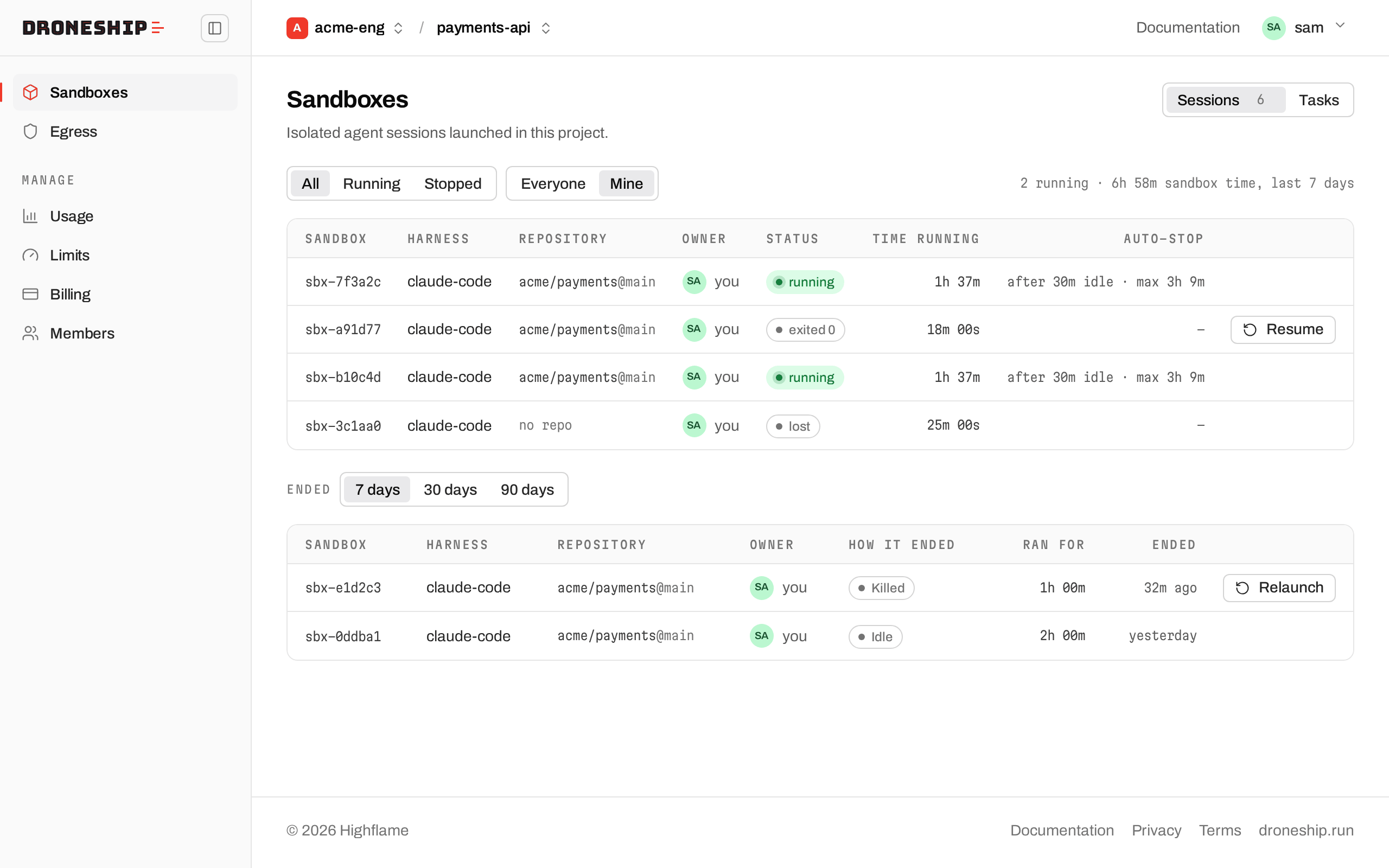
| Column | Shows |
|---|---|
| Sandbox | Its id. Click it to open the sandbox page. |
| Harness | The agent, such as claude-code or codex. |
| Repository | The repo and branch, as name@branch, or no repo. |
| Owner | Who launched it. |
| Status | running, prompt for a task still working, exited 0 or exited <code> for a finished task, lost, or expired. |
| Time running | How long it has run. |
| Auto-stop | When it stops itself, such as after 30m idle · max 7h 59m. A stopped sandbox shows a dash. |
A finished task whose snapshot is still kept has a Resume button. It restores the sandbox and opens its page. From your terminal, droneship resume claude <id> does the same and opens Claude in the same conversation.
Before your first sandbox, the page shows the three commands to install, sign in and launch, and it updates on its own when the sandbox starts.
Switch from Sandboxes to Tasks at the top of the Sandboxes page. Tasks are your background prompt runs (droneship run claude -p "…" -d), newest first. Copy task command copies that command for you.
Filter by All, Running, Succeeded or Failed, and by Everyone or Mine (both show your own tasks today). Each row shows the task (its summary, or the prompt), who ran it, its result (running, exit 0, exit <code> or lost), time running, estimated AI spend, when it finished, and Resume while its snapshot is kept. A run that can’t be resumed says why under its name: snapshot expired or sandbox lost. The toolbar totals the tasks and their AI spend.
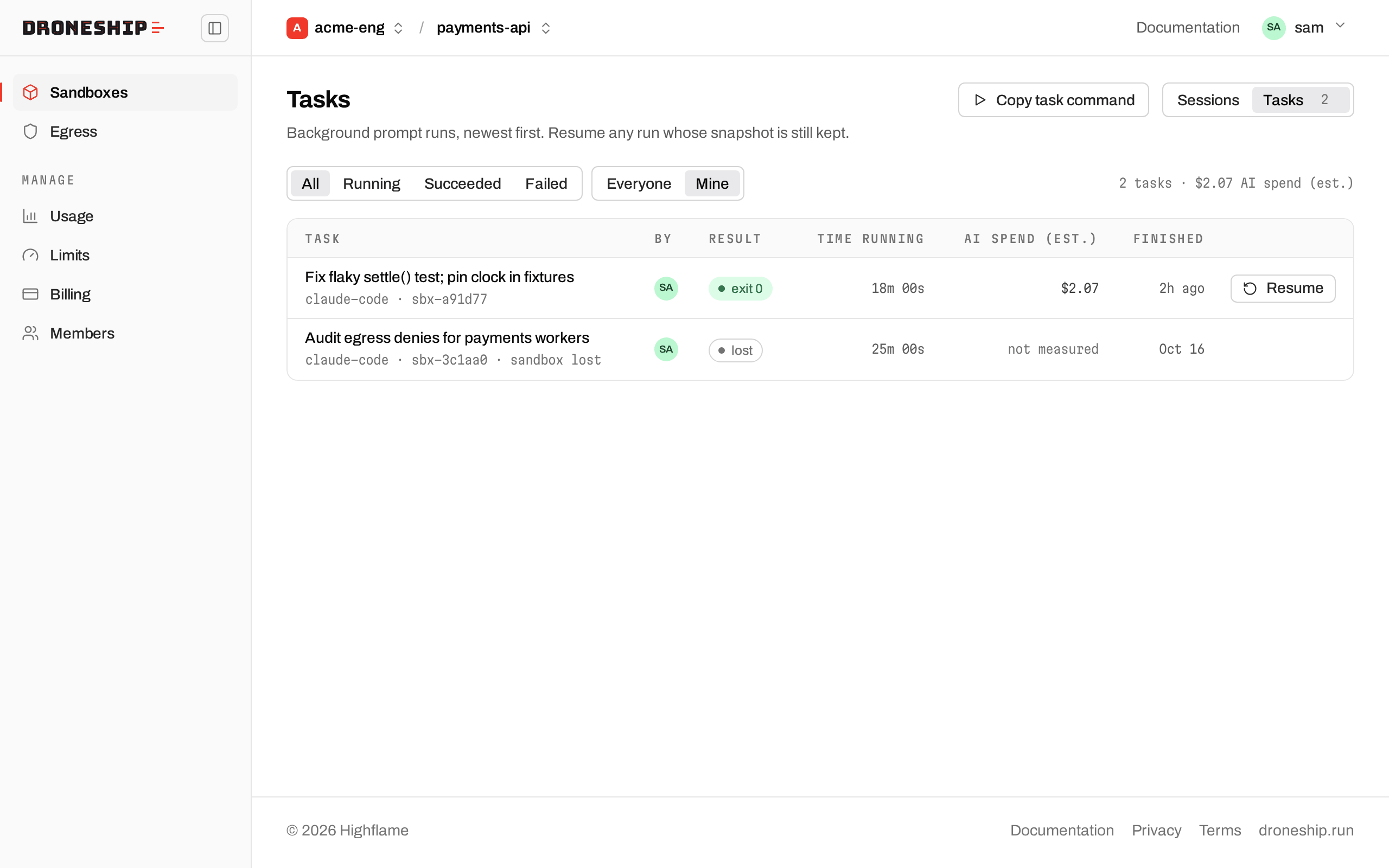
Click a task to open its Logs tab. Background runs and logs covers the same runs from the CLI.
The sandbox page
Section titled “The sandbox page”The header shows the sandbox id, its status and its owner, with buttons for what you can do now:
- Resume, for a finished task whose snapshot is kept.
- Kill, on a live sandbox you own. It asks you to confirm first.
Below the header: the harness, repository, isolation level, egress policy, time running, and estimated AI spend with tokens. A line under them says when it auto-stops, for example “Auto-stops after 30m idle, or in 7h 59m at the latest”. For a terminal sandbox there’s also the command to connect, droneship shell --id <id>, with a copy button.
Then the tabs:
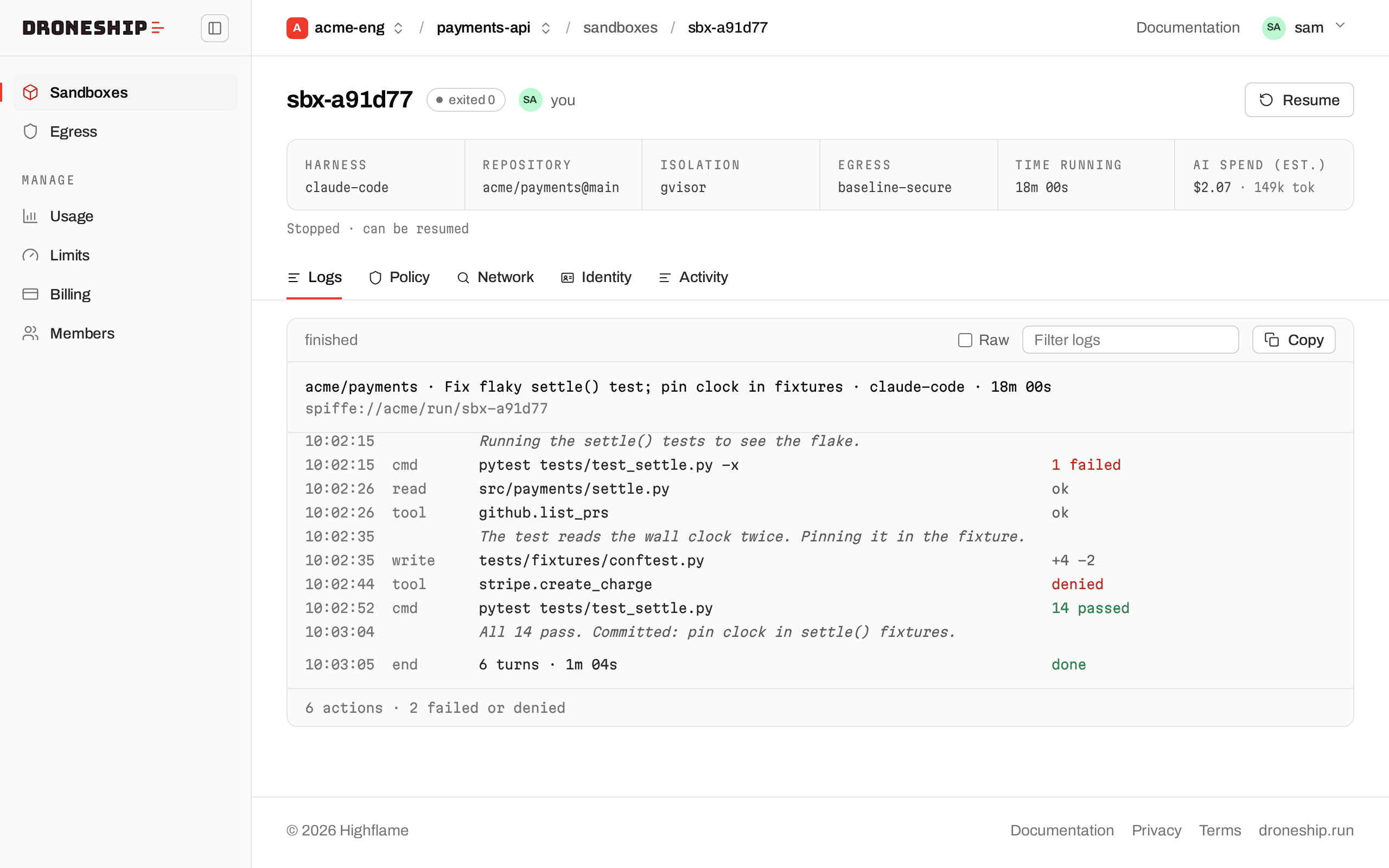
- Logs (tasks only). The agent’s raw log, one JSON event per line, the same as
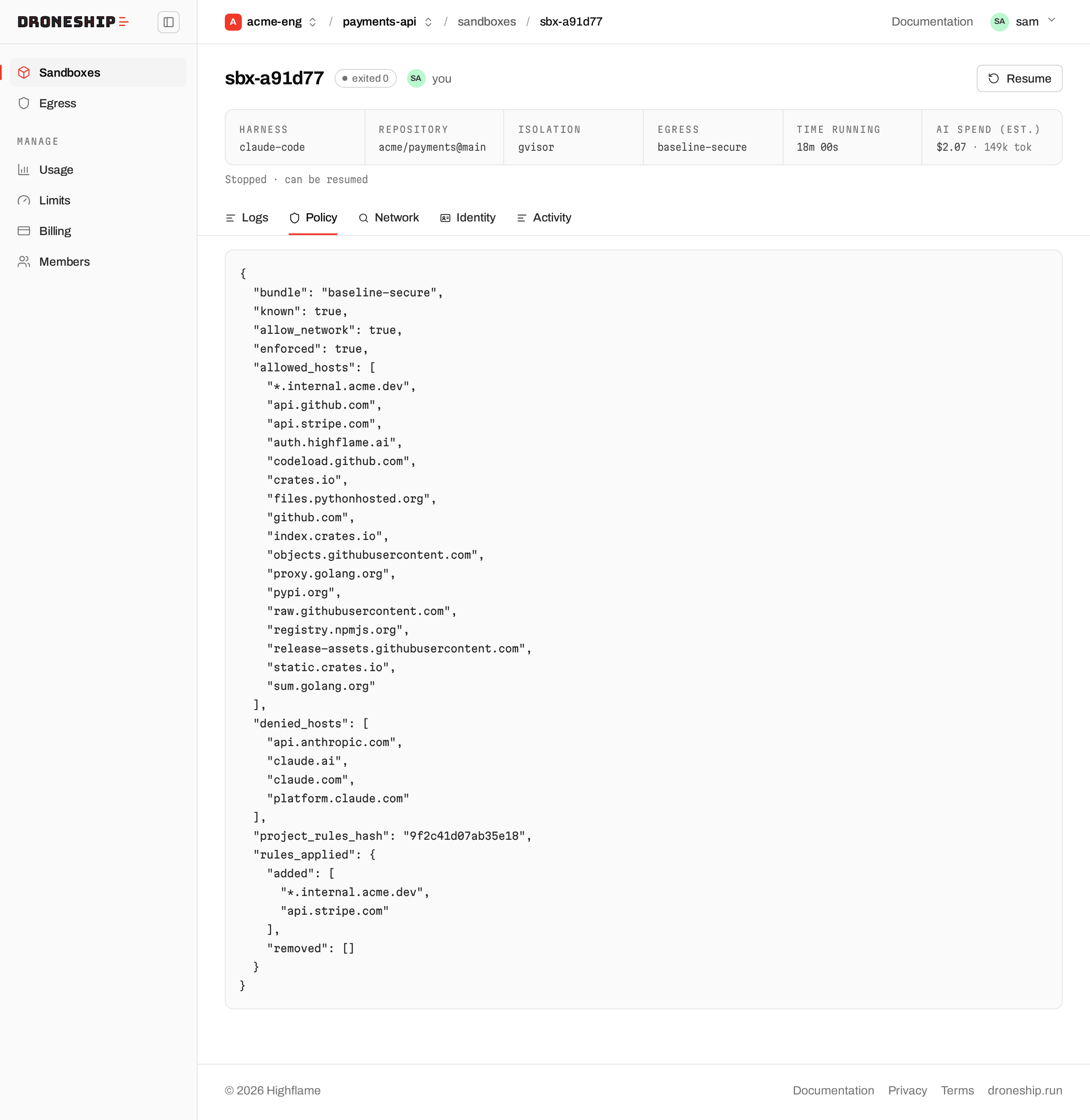
droneship logs --rawprints. While the task runs it follows live and the status readslive · following. When it ends, the status showsexited <code>(orendedwhen no exit code came back), orfinishedfor a task that had already stopped. Type in Filter logs to show only matching lines, and use Copy to copy the whole log. Lines withFAILEDorERRORare marked in red, and test summaries such as12 passedin green. For a readable view, with one row per action and Claude’s messages between them, usedroneship logs -f <id>in your terminal. - Policy. The sandbox’s egress policy as JSON, as it was at launch: the bundle, what it allows, and what the project’s egress rules changed. See Egress.
- Network (also on ended sandboxes). The hosts the egress policy blocked, newest block first, with when each was first and last blocked. A block appears about 10 to 20 seconds after it happens, and the list covers the last 90 days. On a sandbox that the project’s egress rules apply to, each row has Allow buttons that add a rule for the host, or for its domain, to the project. A host stays listed after it is allowed, and its row then names the rule that allows or denies it. See Egress and Egress rules.
- Identity. The sandbox’s workload identity. Servers from the repo’s
.mcp.json(Tools and MCP) are not listed here. See Isolation and identity.
The Policy tab shows the egress policy the sandbox got at launch:
Egress
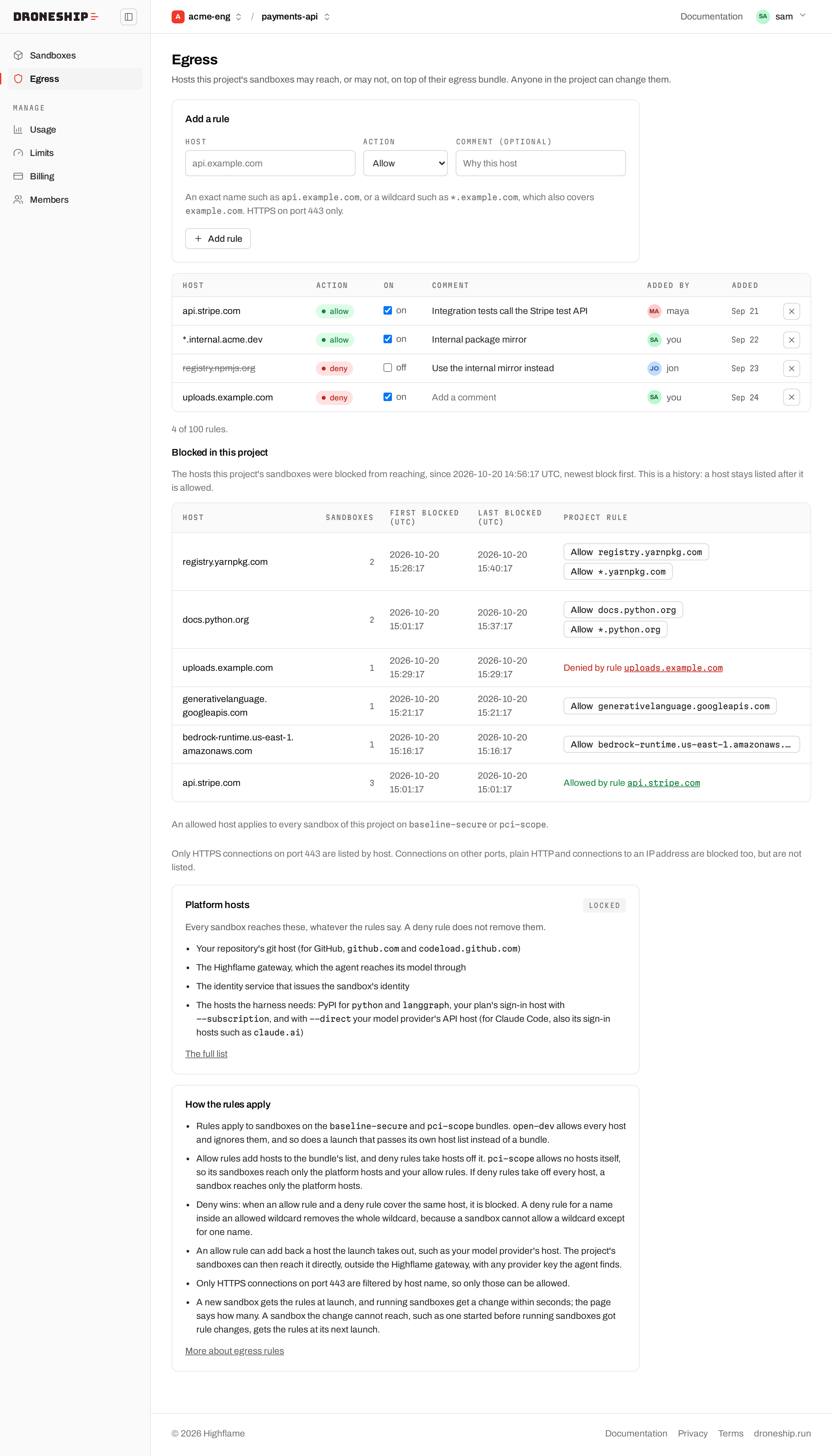
Section titled “Egress”The project’s egress rules: hosts its sandboxes may reach, or may not, on top of their egress bundle. Anyone in the project can change them.
- Add a rule: enter a host such as
api.example.comor*.example.com, pick Allow or Deny, add a comment if you want one, and click Add rule. A host that can’t be a rule, such as an IP address or*.com, is refused with the reason. An allow rule that a deny rule would cancel is refused, and a deny rule inside an allowed wildcard asks first. - The rules table: each rule’s host, action, an on/off switch, comment, who added it and when. A rule that is on but does nothing says No effect and why. Click a comment to change it, and × to delete the rule.
- Blocked in this project: the hosts the egress policy blocked in all of the project’s sandboxes, with how many sandboxes each was blocked in and when it was first and last blocked, over the last 30 days. Each row has Allow buttons, as on a sandbox’s Network tab, or names the rule that already allows or denies the host.
- Platform hosts: the hosts every sandbox reaches whatever the rules say, marked Locked.
After a save, the page says how many of the project’s running sandboxes got the change, and how many get it at their next launch.
Connectors
Section titled “Connectors”The project’s MCP servers that share one token: Tools and MCP shows how to add one. Anyone in the project can change them.
- Add a connector: a name, the server’s
https://URL and the shared token. Use GitHub fills in GitHub’s server. Test and add tries the token against the server first, and the token is never shown again. - Servers: each server’s URL and tools. Pick the tools agents may call and click Save tools; agents get none until you turn some on. Change sets a new URL or token, Turn off stops giving the server to new sandboxes, and Remove deletes it.
- A server tagged Studio is one where each person connects their own account. It is set up in Highflame Studio, and Droneship sandboxes don’t get it yet.
Live sessions started after a change get it; prompt runs don’t get connectors yet.
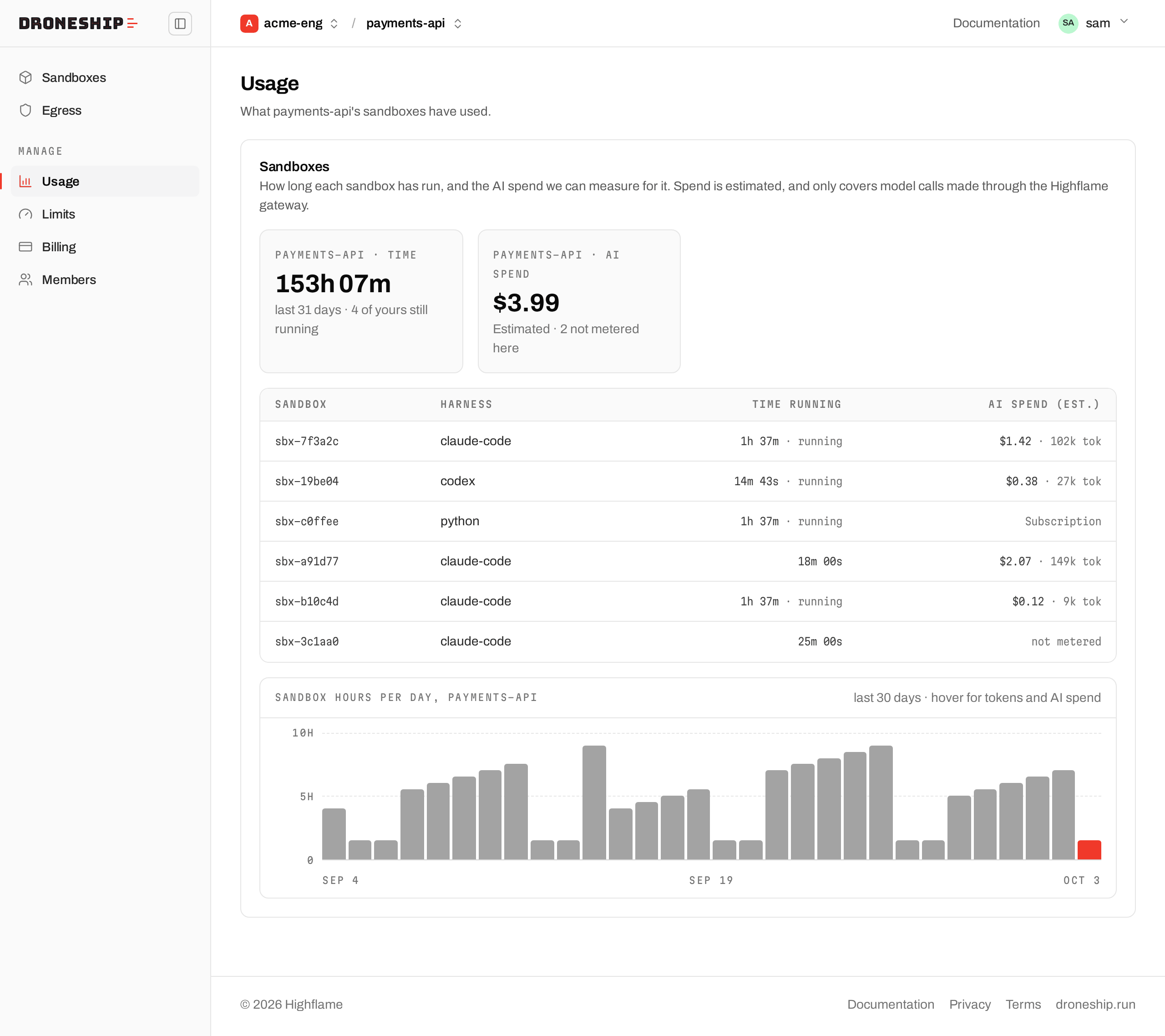
The Sandboxes panel shows what this project’s sandboxes have used:
- Time: total sandbox time, how many sandboxes, and how many are still running.
- AI spend: estimated spend on model calls. It covers only calls made through the Highflame gateway.
A table lists each sandbox with its harness, time running and AI spend, with tokens where they’re measured. The spend column reads Subscription for a sandbox billed to your own Claude or ChatGPT plan (there’s nothing for Droneship to meter), not metered when model calls didn’t go through the gateway, and not measured when the figure isn’t in yet. Below the table, a chart shows sandbox hours per day for the project.
Limits
Section titled “Limits”Your organization’s plan and what it allows: concurrent sandboxes, sandbox hours per month, projects per organization and users per project, with how many projects you have. On Free and Trial, the page points you to sales@highflame.com to switch to Pro. See Limits.
Billing
Section titled “Billing”Your organization’s plan. Billing isn’t in the console yet. To change plans, contact sales@highflame.com.
Members
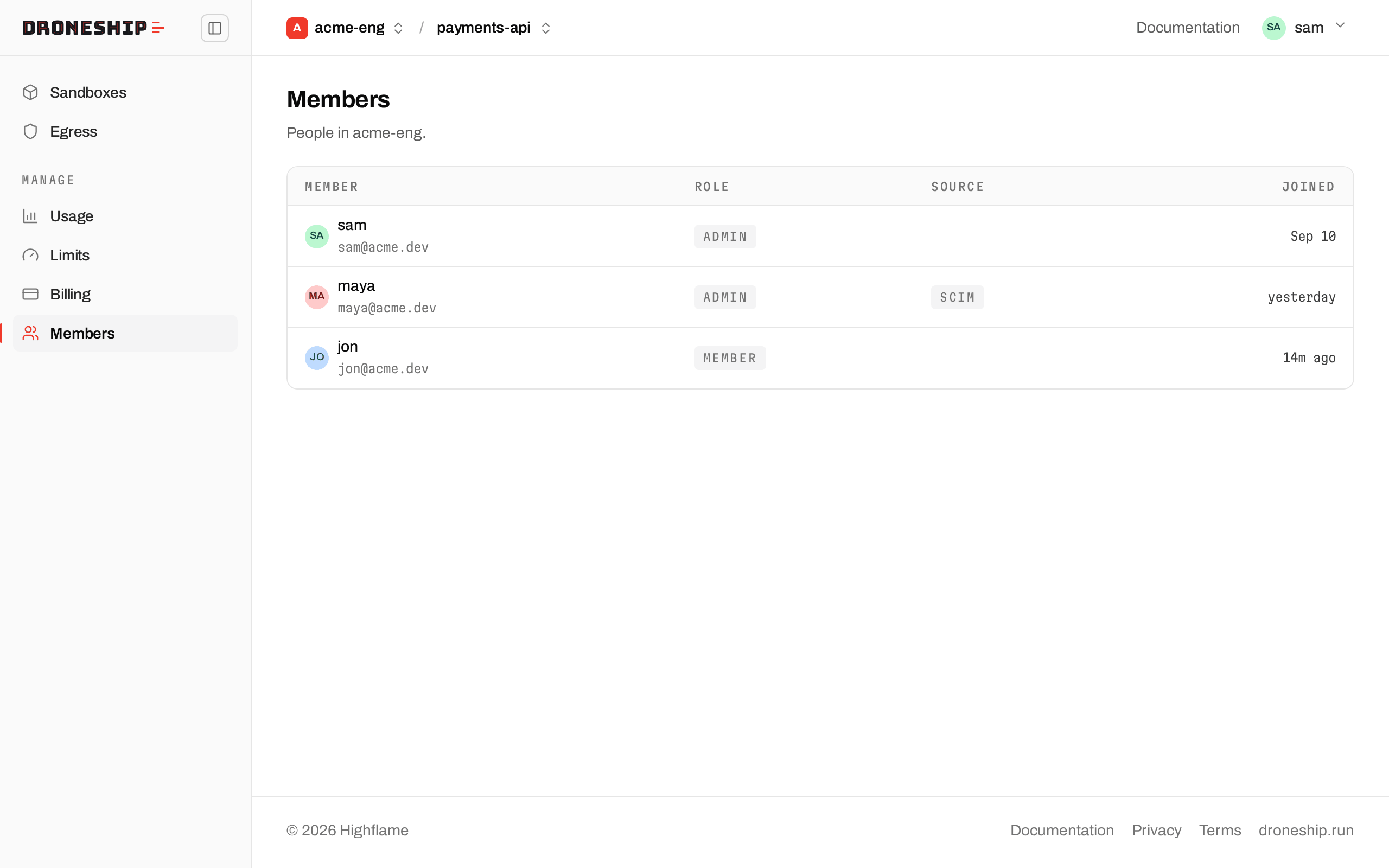
Section titled “Members”The people in your organization: each one’s name and email, role, Source (how they were added, such as SCIM, when it isn’t a regular sign-up), and when they joined. The list is read-only. To add someone, an org admin invites them from the organization settings in Highflame Studio, and they accept from the email. They show up here once they’ve joined. Work as a team covers sharing a project.
Settings
Section titled “Settings”Open it from the account menu at the top right. It shows the organization’s name, slug and account id (with a copy button), and the current project’s name. Org admins can rename the project here. Its URL doesn’t change.
Claude Code routines connects Claude Code routines to the current project, so routines, claude.ai/code sessions and claude --cloud sessions sent to a Claude self-hosted environment run in this project’s sandboxes. Its badge reads Off, Connected or Not connected.
- Off: paste the environment’s key (it starts with
sk-ant-cc-), pick what routine sandboxes may reach, and click Enable routines. Droneship checks the key with Anthropic before saving it, which takes a few seconds. If Anthropic refuses it, the reason is shown under the form and nothing is saved. Routines aren’t on the Free and Trial plans. - On: it shows the environment id, the egress bundle, the date it was enabled and, when not connected, the reason. To change what routine sandboxes may reach, pick another bundle, leave New environment key (optional) empty and click Save. To replace the key, paste a regenerated key or another environment’s key there and click Save; it asks you to confirm. Disable routines turns it off after you confirm.
Only org admins can enable, update or disable routines; others see the status. The same actions are in the CLI as droneship routines.
More: Quickstart, Organization and project, Auto-stop.
- Hand off a task: start a task and follow it on the Tasks page.
- Background runs and logs: the same runs from your terminal.
- Work as a team: projects, members and roles.