Bring your team
This page sets up an organization and project, signs teammates in to it, and shows how to switch projects. Each teammate gets their own sandboxes and workspaces.
-
Create the organization and its first project.
The first time you open the console, it asks for an organization name (usually your company or team) and a first project. A project groups sandboxes and the people who launch them, usually one per repo or service.
-
Invite your teammates.
An org admin invites them from Highflame Studio: open studio.highflame.ai/settings, find Team Members under Organization, and click Invite. Enter each teammate’s email and pick a role. They accept from the invitation email.
The Free plan shows one user per project; that limit isn’t enforced yet. See Limits.
-
Each teammate installs the CLI and signs in to the project.
Terminal window curl -fsSL https://droneship.run/install | shdroneship login --project payments-apidroneship whoami--projecttakes the project’s name, slug or id.whoamishows the account and project the sign-in is tied to. -
Run agents as usual.
Terminal window cd ~/src/payments-apidroneship run claudeEvery sandbox belongs to the person who launched it. Saved workspaces are per person too, so two teammates on the same repo each get their own and don’t share files.
-
See who’s in.
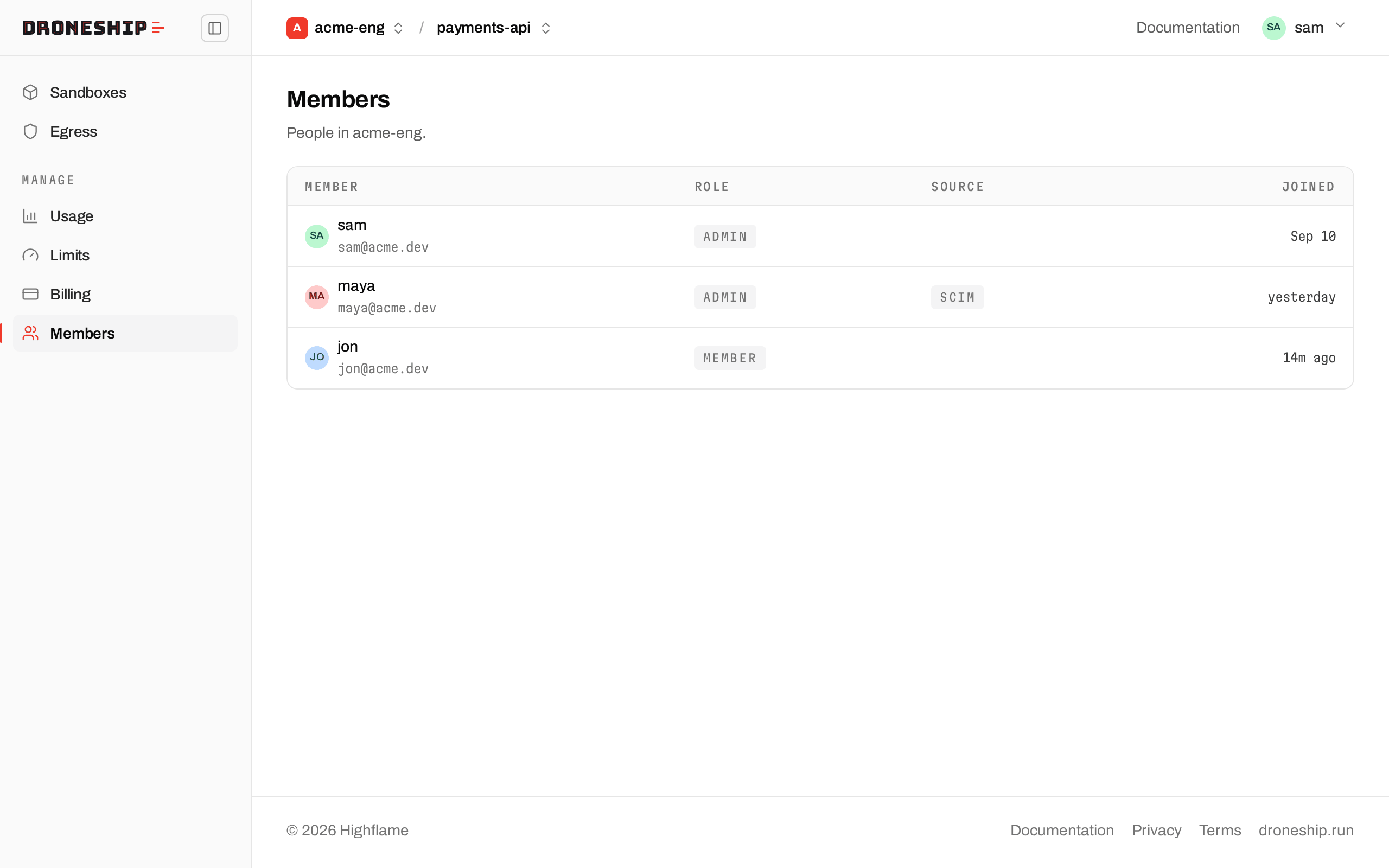
The Members page lists everyone in the organization with their role and when they joined.
Switch project
Section titled “Switch project”In the console, the top bar shows your organization and project. Click either name to switch. In the CLI, your project is fixed at sign-in, so switch by signing in again:
droneship login --project billing-apiTo keep more than one sign-in, use a profile for each:
droneship --profile billing login --project billing-apidroneship --profile billing run claudeDRONESHIP_PROFILE=billing does the same as --profile billing. Login and profiles has the details.
Who can do what
Section titled “Who can do what”| Org admin | Member | |
|---|---|---|
| Launch sandboxes and tasks in the project | Yes | Yes |
| See and kill their own sandboxes in the console | Yes | Yes |
| Create a project (New project, in the project switcher) | Yes | No (“Ask an org admin to add projects”) |
| Rename a project (Settings, in the account menu) | Yes | No |
| Invite teammates (Highflame Studio settings) | Yes | No |
What teammates see
Section titled “What teammates see”Today each person’s Sandboxes, Tasks and Usage pages show the sandboxes they launched. Nobody sees another member’s sandboxes or usage in the console.
The Limits page shows what your plan allows: sandboxes at once, sandbox hours per month, projects per organization and users per project. Billing shows the organization’s plan.
More: Organization and project, The console, droneship login.
- Work on a private repo: connect GitHub once.
- Pair with Claude on your repo: the everyday live workflow.
- Security overview: what every sandbox gets by default.